
Register a domain and point it to your hosting
Your domain is your address on the internet, for example zaitshop7.com. This guide takes you from searching for a name to seeing your website open on it: about 10 minutes of work, then a short wait while the internet updates.
Before you start
- A Unitward account (you can create one during checkout).
- A payment method.
- Your hosting nameservers. You'll find them in your hosting welcome email. If your hosting is with another company, ask them for these.
Step 1Search for the name you want
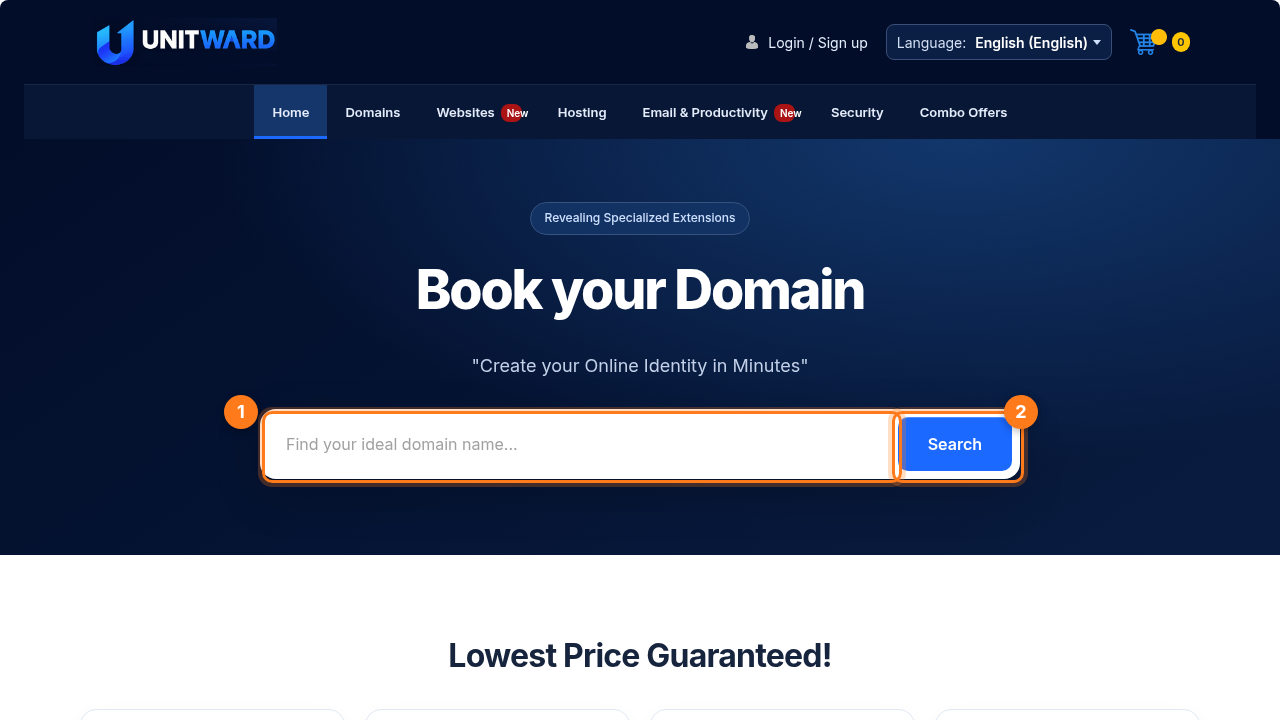
Go to unitward.com. Type the name you want in the search box (1). You don't need to type www. Then click Search (2).
Step 2Select your domain and go to checkout
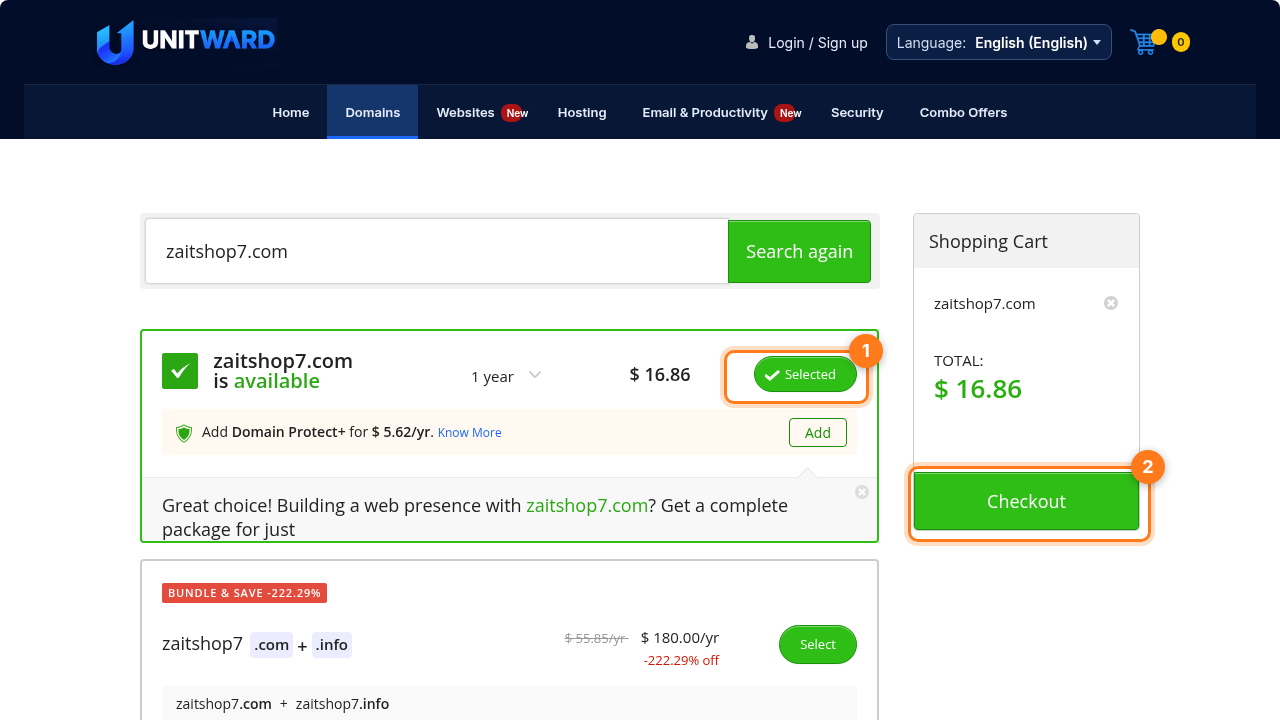
If the name is free, you'll see is available with a green tick. Click Select (1) and the domain is added to your shopping cart. Then click Checkout (2).
Step 3Sign in or create your account
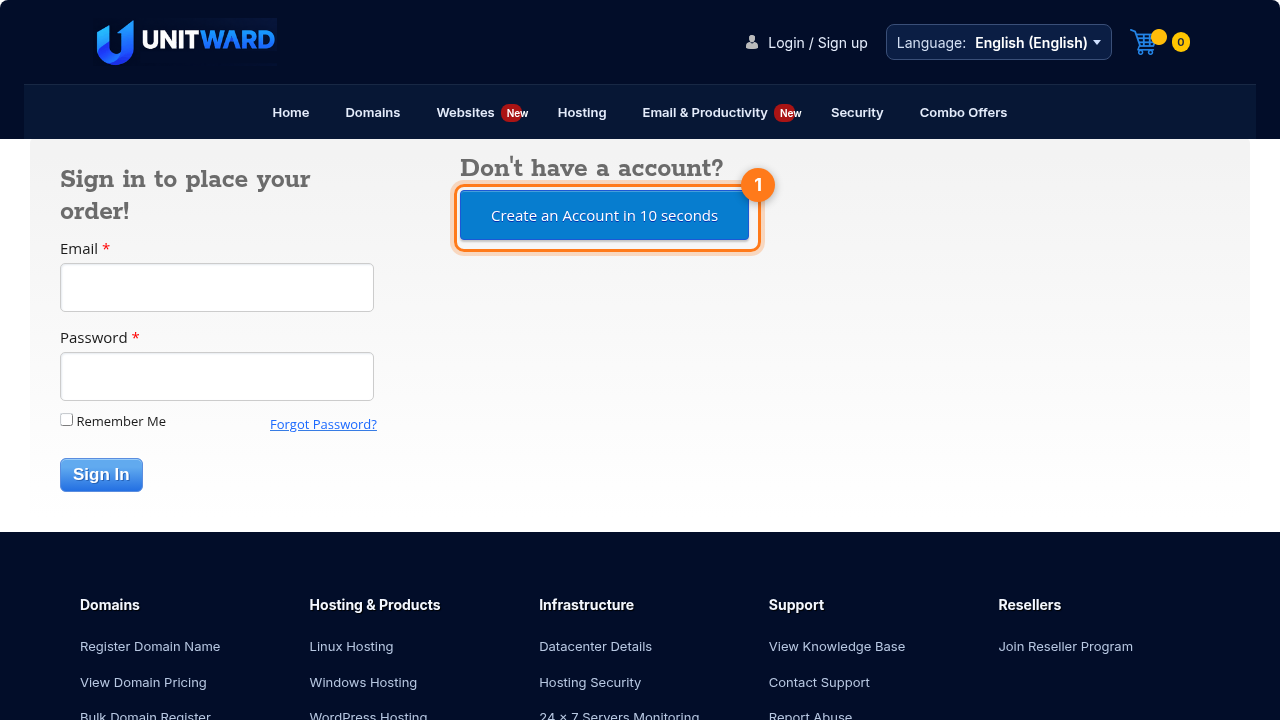
Already a customer? Sign in with your email and password. New here? Click Create an Account (1) and fill in your details.
Step 4Review your order and pay
Choose how many years to register the domain for, check the total, choose a payment method and pay. Once the domain is registered you'll receive a confirmation email.
Step 5Open your domain in the control panel
Click Login at the top of unitward.com and sign in to your control panel. Find your new domain in your list of orders and open it.
Step 6Understand how pointing works
Nameservers tell the internet where your domain lives. Your hosting company gives you two (sometimes four) addresses, such as ns1.yourhost.com and ns2.yourhost.com. When your domain uses them, visitors reach your website.
Step 7Change the nameservers
- On your domain's page, open Name Servers.
- Replace the current values with the nameservers from your hosting welcome email, one per field.
- Click Update to save.
Step 8Wait a little, then check your site
The change usually works within a few hours, but it can take up to 24–48 hours to reach everyone worldwide. To check, open your domain in a private browser window.
✅ Your domain is ready
Your website now opens on your own name. Next, create a professional email on the same domain.