
Add customers and place orders for them
This guide shows you how to add a customer in the Unitward panel, and where the order path starts. A paid order uses your prepaid balance. If funds cannot be added yet, wait or write to support before you try a paid order.
Before you start
- An active Unitward reseller account.
- Enough prepaid balance for a paid order, when Add Funds is available. See the Add funds guide.
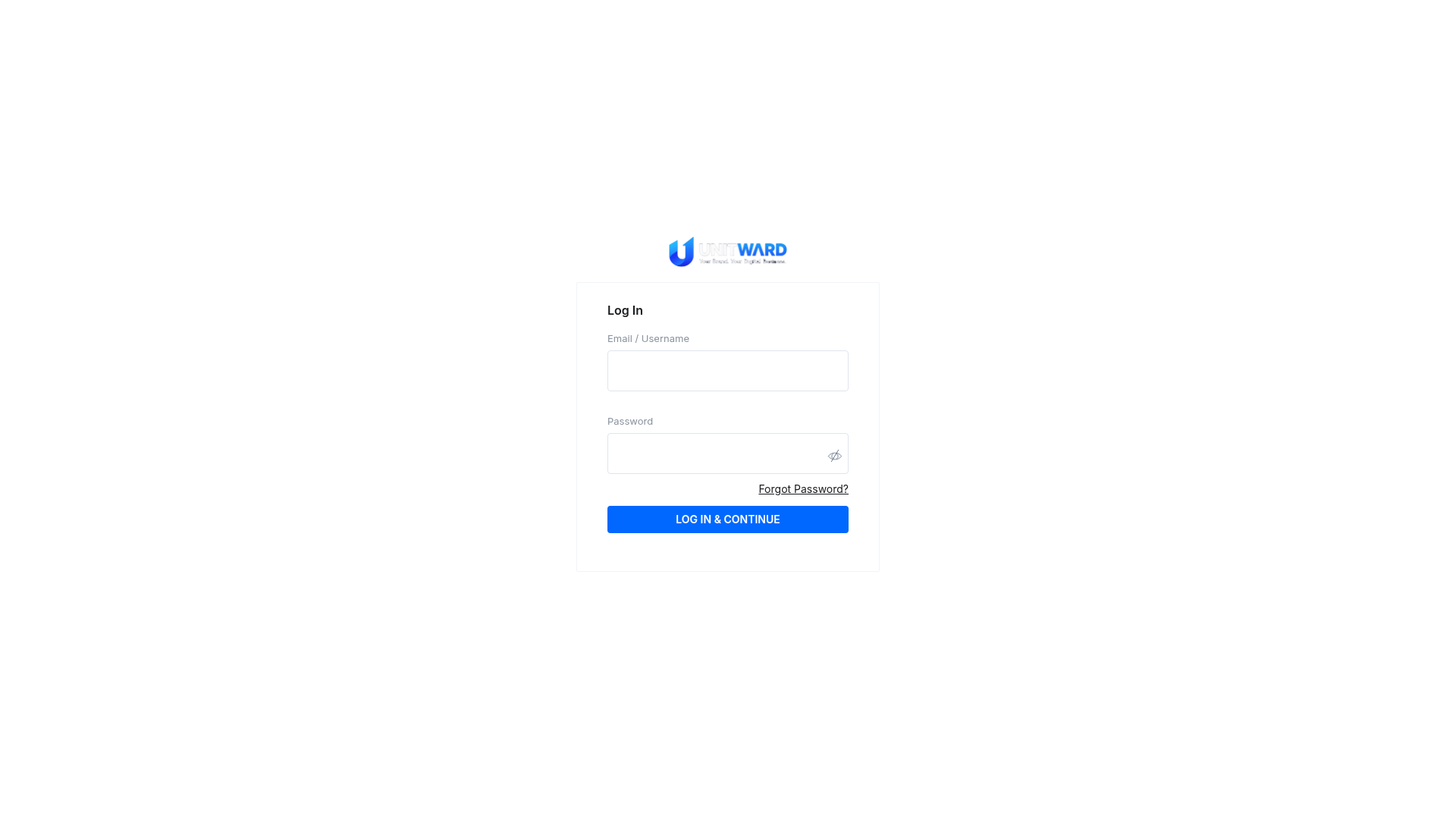
Step 1Sign in to the Unitward panel
Open https://unitward.manage-orders.com and sign in.
Step 2Add a customer
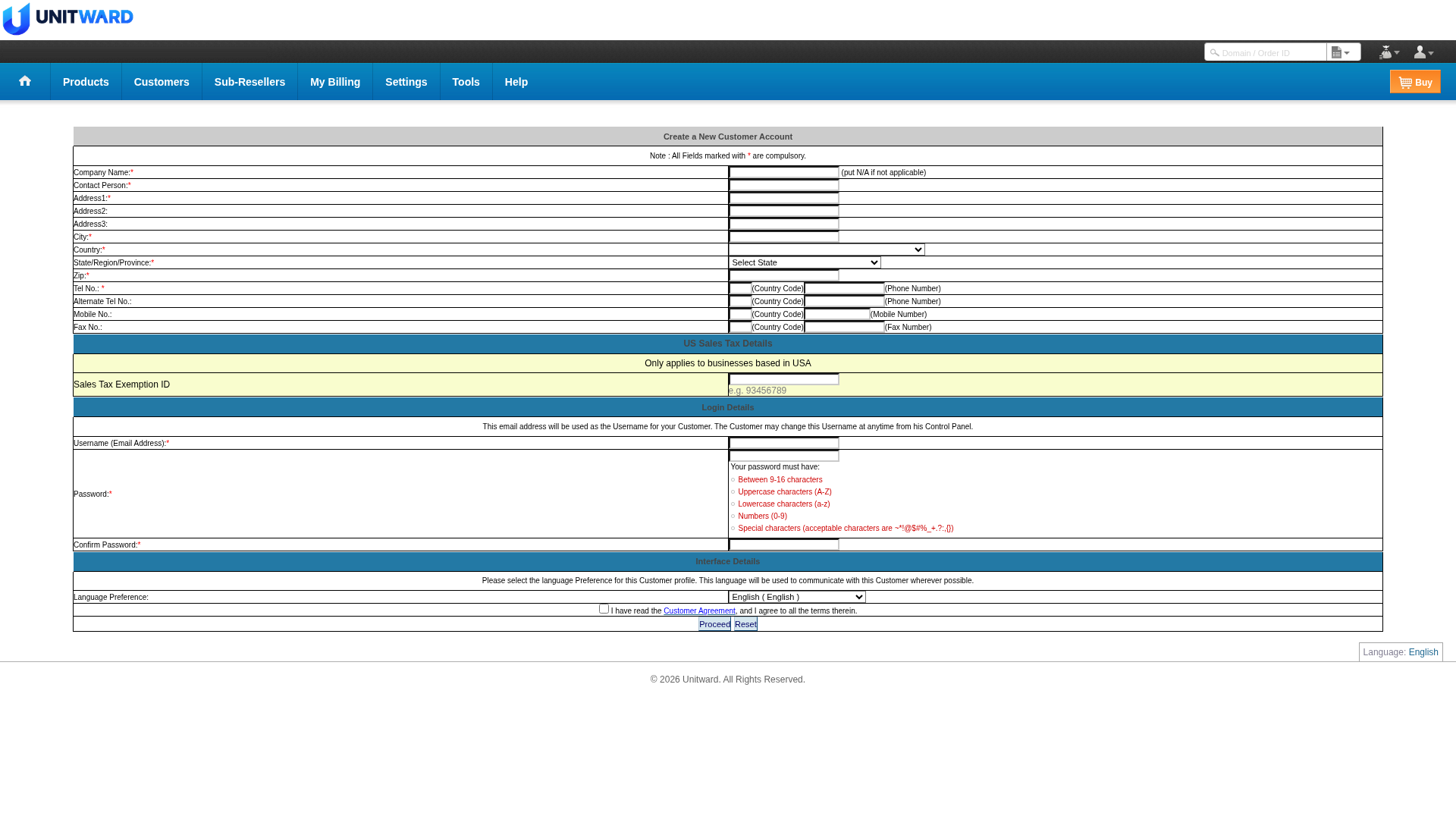
Open Customers, then Add. The form title is Create a New Customer Account. Fill in the required fields (they are marked with *), including company name, contact person, address, login email and password. Tick the box to agree to the Customer Agreement, then click Proceed.
Step 3Find your customers in the list
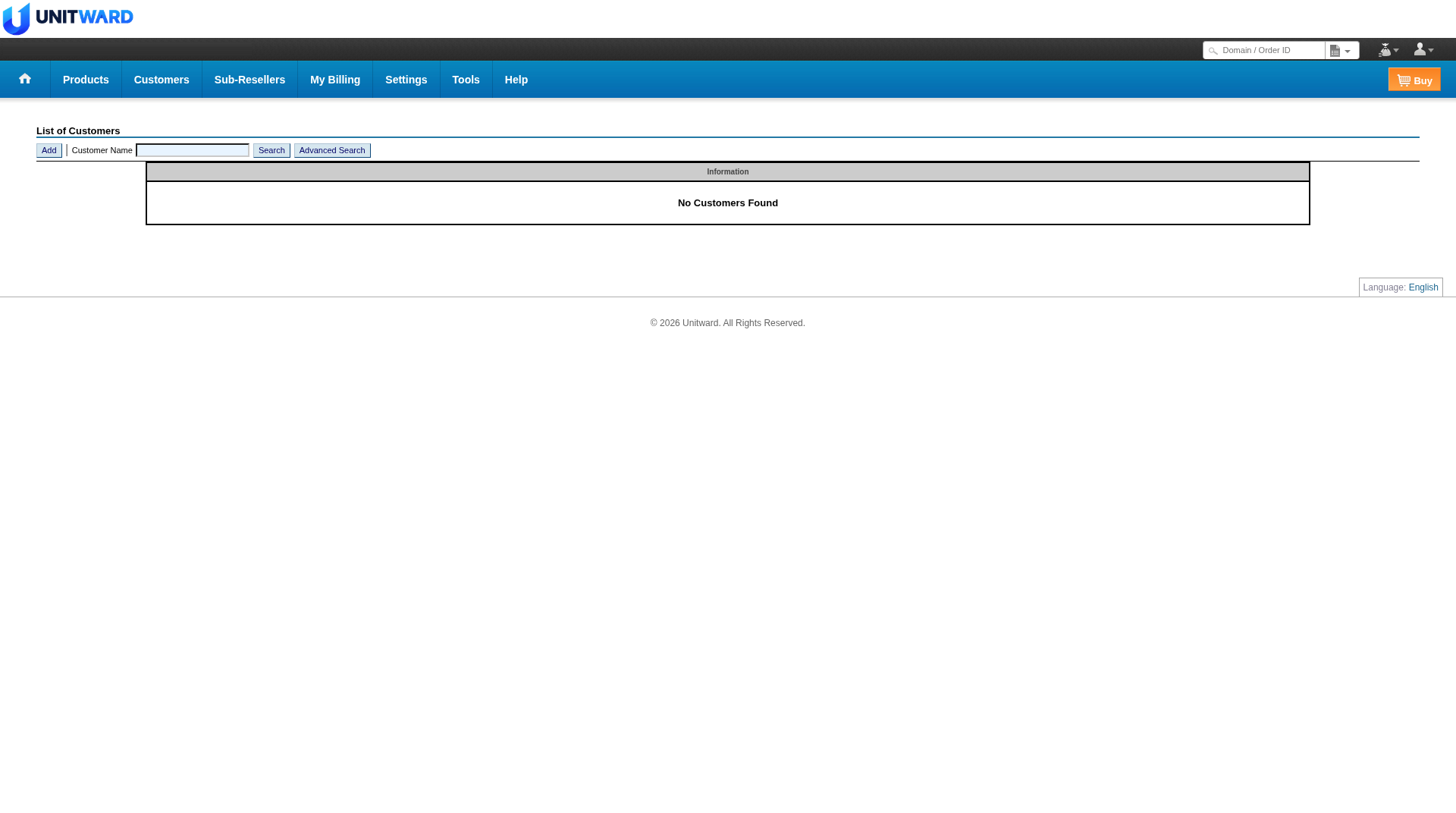
You can open Customers > List later to find your customers. If none have been added yet, the page shows No Customers Found. Use the Add button on that page if you want to add one from the list.
Step 4Start an order from Buy when the form is available
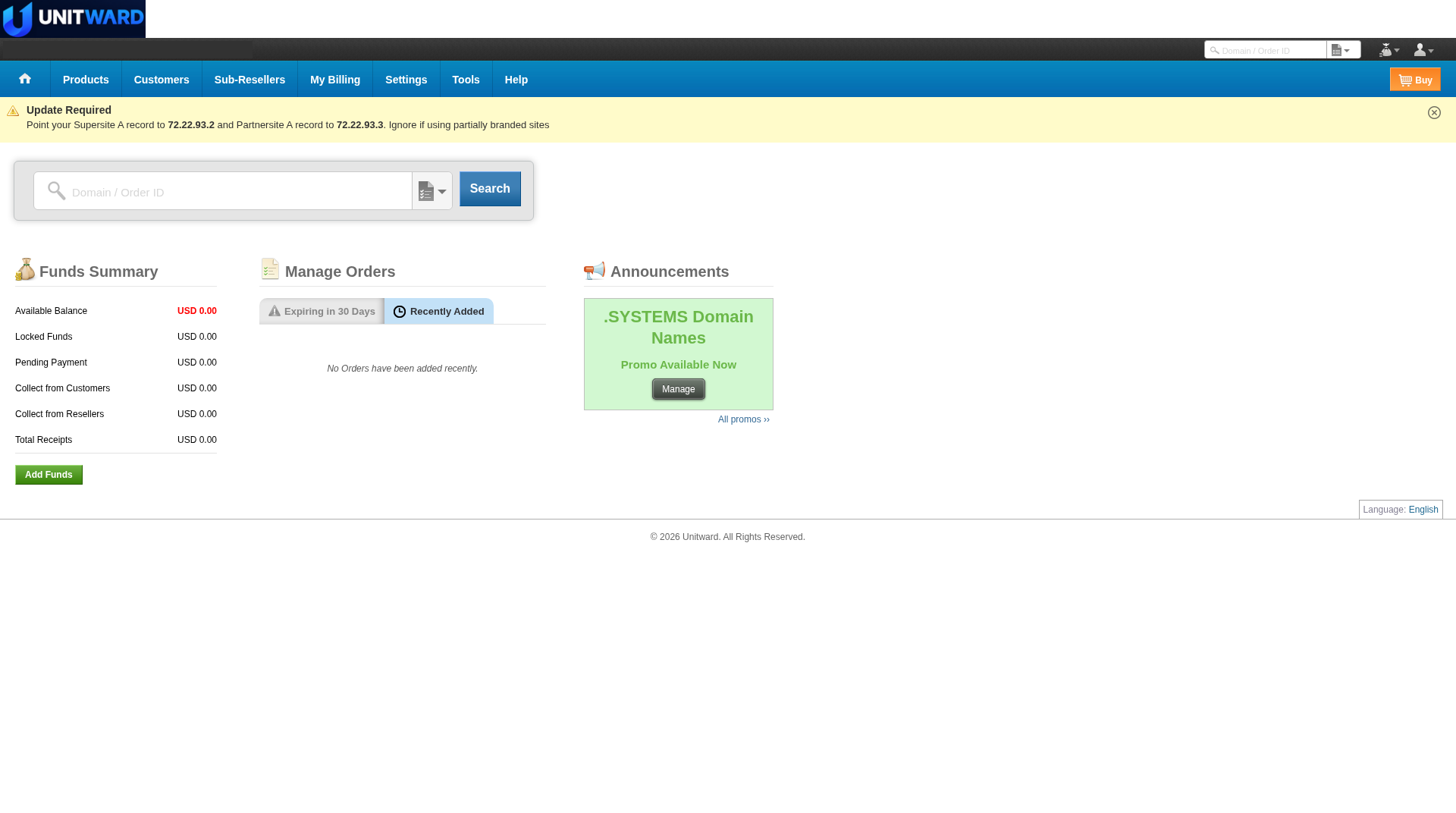
The orange Buy button at the top right of the panel, including on the Home page, is the starting point for placing an order for a customer. When the order form opens, follow the steps the panel shows to choose the product and the customer. The cost comes from your prepaid balance.
If Buy does not open the order form, stop and write to [email protected].
Step 5The order screens
A complete Buy path usually includes product selection, customer selection and order confirmation. Those screens will be added here when a working path can be captured.
Step 6Find the order after it is placed
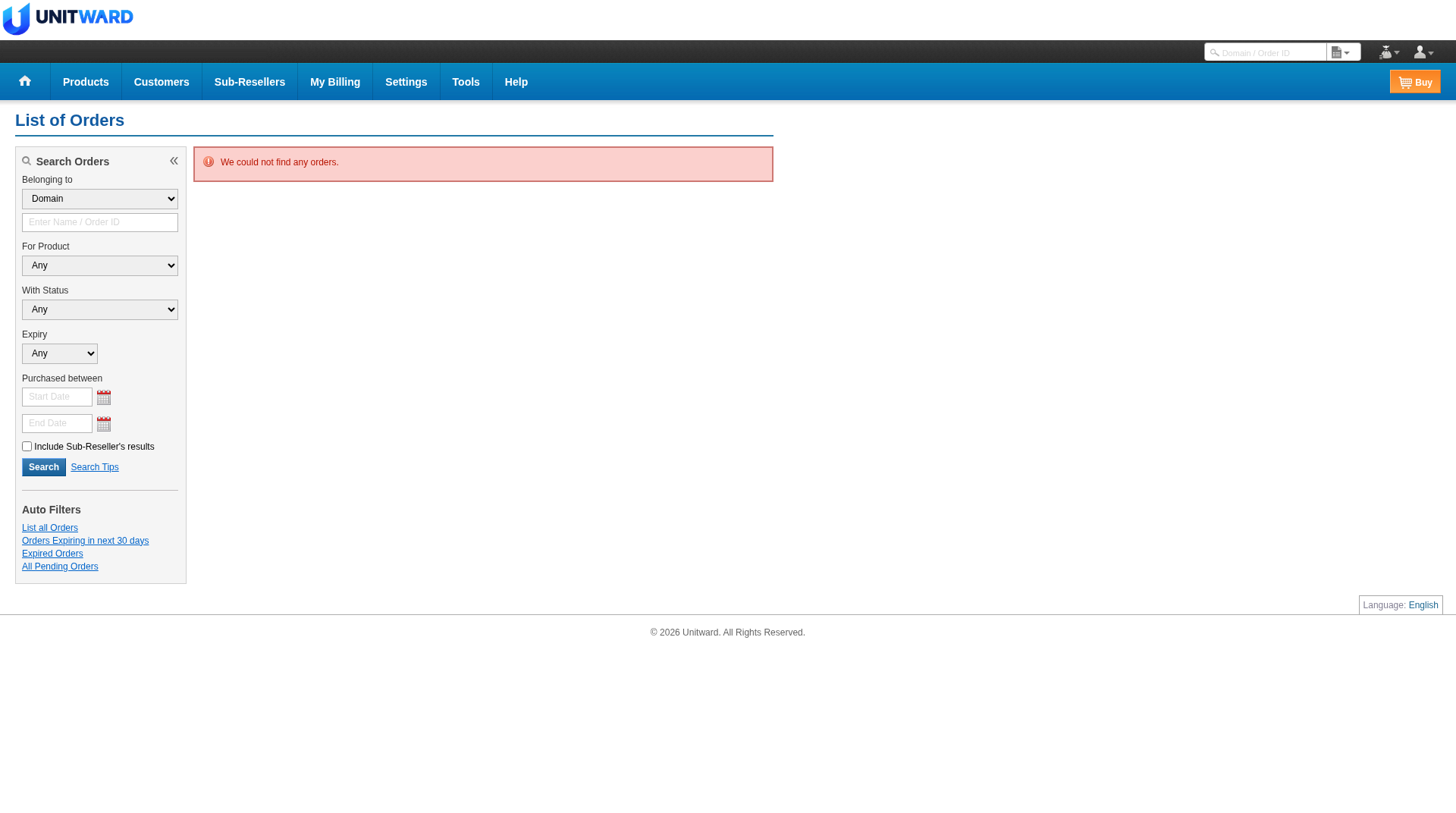
After an order is placed, look for it in Manage Orders on the Home page, or open Products > List All Orders. You can also search by domain or order ID in the search box at the top of the panel. The List of Orders page has filters such as product, status and date. If there are no orders yet, the page shows We could not find any orders.
✅ You can add a customer
Use Buy, Manage Orders and Products > List All Orders when those screens are available. If Buy does not open the order form, write to [email protected].