
Protect your privacy on your branded site
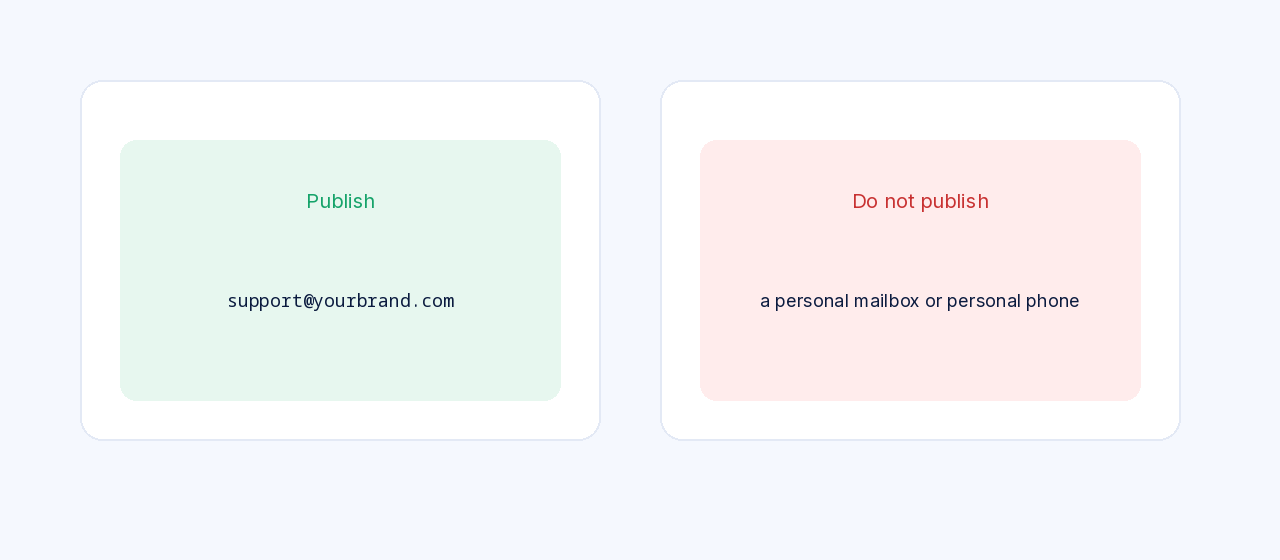
This guide shows you how to keep personal contact details off your hosting business pages. Customers should see your brand — a support address on your domain, and a business name — not a personal mailbox or a personal phone number.
Before you start
- A branded support address, such as [email protected]. If you still need one, see Create a branded support email.
- Access to your storefront, contact page, footer, domain settings and reseller panel contact fields.
Our team can check the public pages, the panel contacts and domain privacy as a paid service — contact [email protected].
Step 1Decide what the public should see
Treat anything on your store, in order emails, or in the domain’s public contact record as public. Do not publish:
- A personal mailbox on another domain
- A personal mobile or home phone number, unless you truly want customers to call it
- A home address, if a business or postal address exists
Use [email protected] (and other addresses on your domain) everywhere a contact is required.
Step 2Check the contact page
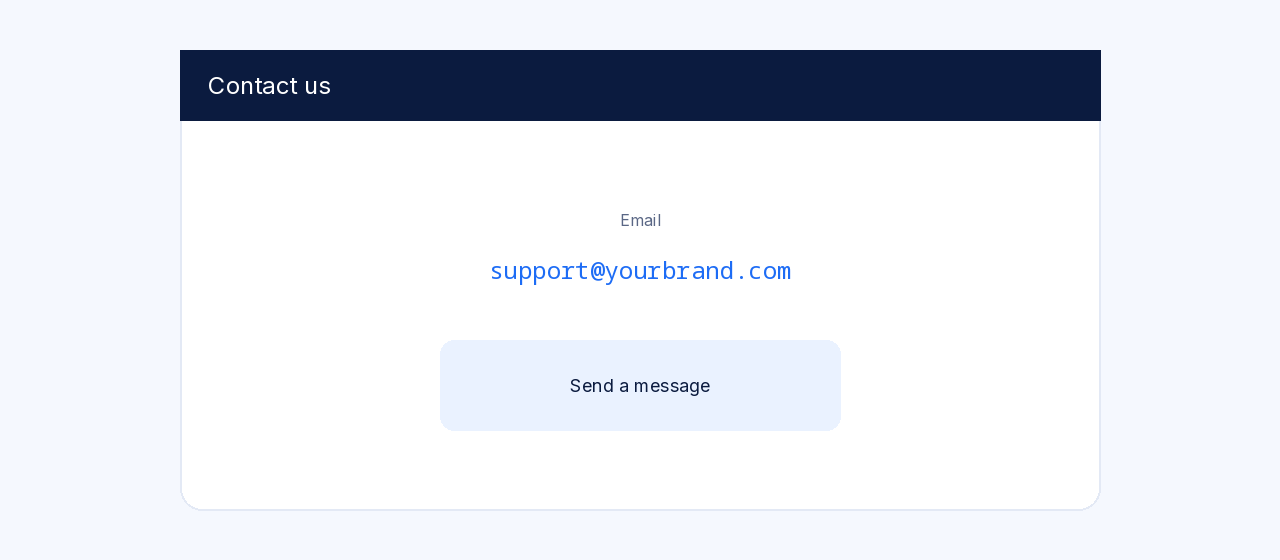
Open your Contact Us page on the storefront. Replace any personal email or phone with the branded address. If the page has a form, confirm the notification goes to [email protected] (or is forwarded there), not to a personal mailbox.
Step 3Check the footer, header and about text
Look at the header, the footer, the about page, and any “call us” or “write to us” line in the store. Those are easy to forget after you change the main contact page. Use your business name and the branded address only.
Step 4Turn on WHOIS privacy for your domain
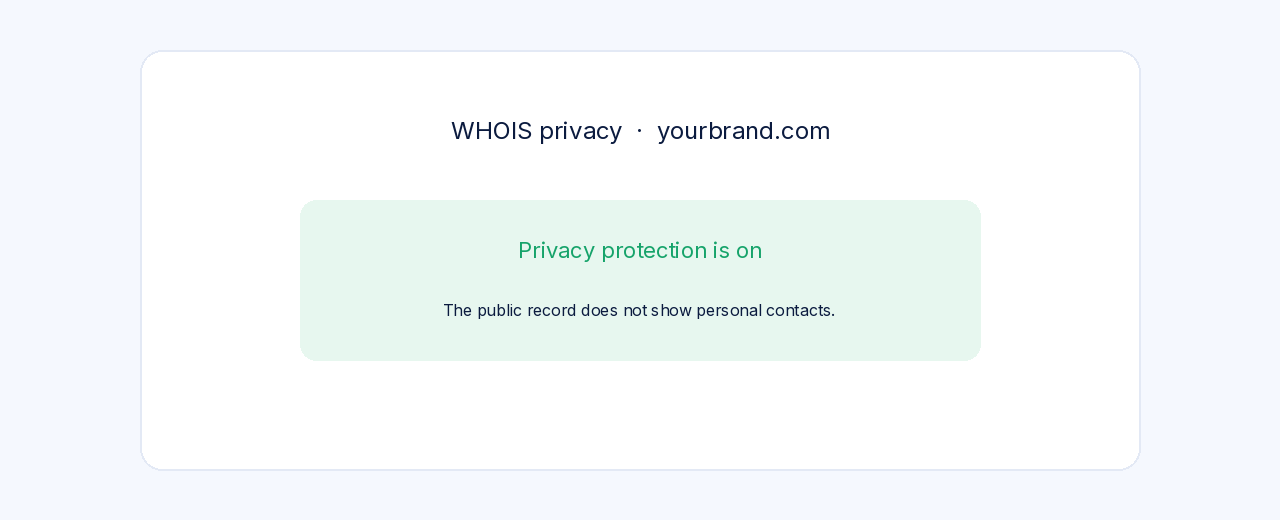
The public domain record (WHOIS) can show a registrant email, phone and address. If your registrar or panel offers privacy protection (sometimes called WHOIS privacy or Privacy Protect), turn it on for yourbrand.com and for any other domain that should stay private.
If privacy is not available for that extension, use a business contact on the domain record, not a personal one, whenever the registrar lets you edit it.
Step 5Update signatures and panel contact fields
In your reseller panel, review any fields for support, billing, sales or abuse contacts, and any email signature. Set them to addresses on your domain. Then send yourself a test order or a test message and read the footer of the email.
Also check auto-replies and forms on your store. The goal is the same everywhere: customers should not find a personal mailbox or a personal phone number.
Step 6Do a final sweep
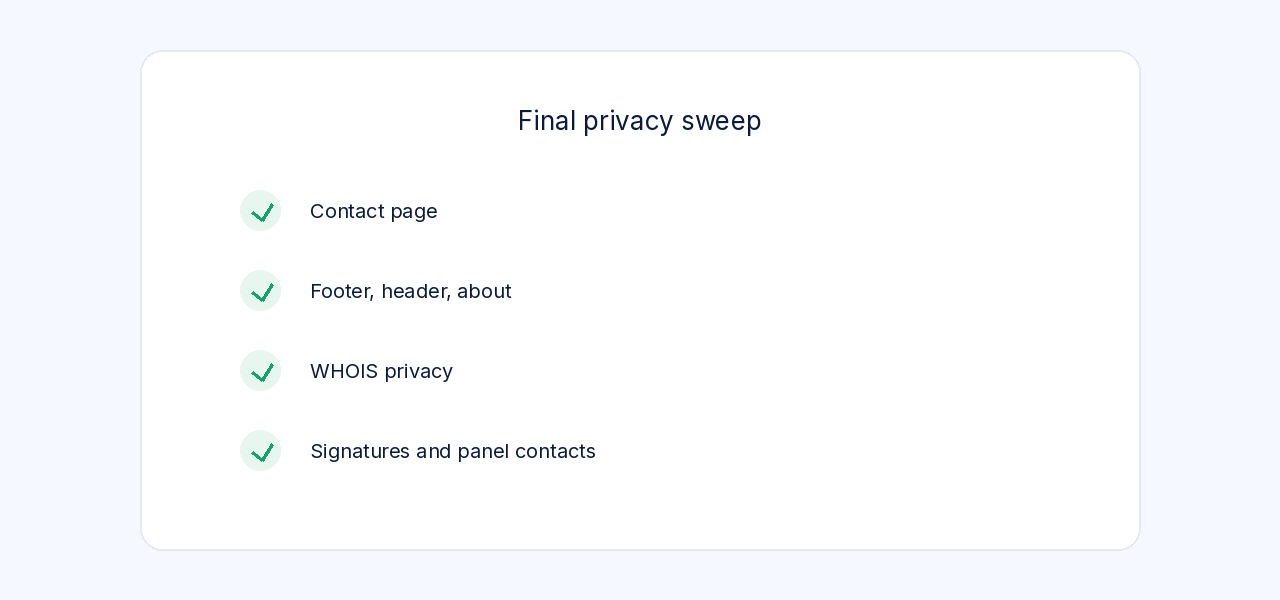
- Contact page, footer, header and about text show only branded details.
- Panel contact fields and email signatures use [email protected] or another address on your domain.
- WHOIS privacy is on, or the public domain record uses a business contact.
- A test email to customers shows the brand address, not a personal one.
This check sits alongside the final check in Run your hosting business fully under your own brand.
✅ Only your brand is public
A visitor should be able to contact you only through addresses and numbers you chose to publish under your brand. If you find a personal detail you cannot change, write to [email protected].
Our team can check the public pages, the panel contacts and domain privacy as a paid service — contact [email protected].